Account Summary
Note:
The Account Summary section of the Enterprise Portal is only available in Account context.
Account and Contract information (i.e., Account Details, Network, and Product Entitlements) recorded by the Service Provider for the Enterprise Account is available to Enterprise Account Users in the Account Summary section of the Enterprise Portal.
Most of the displayed information is read-only; Users cannot edit any of the details except for the Account Settings tab.
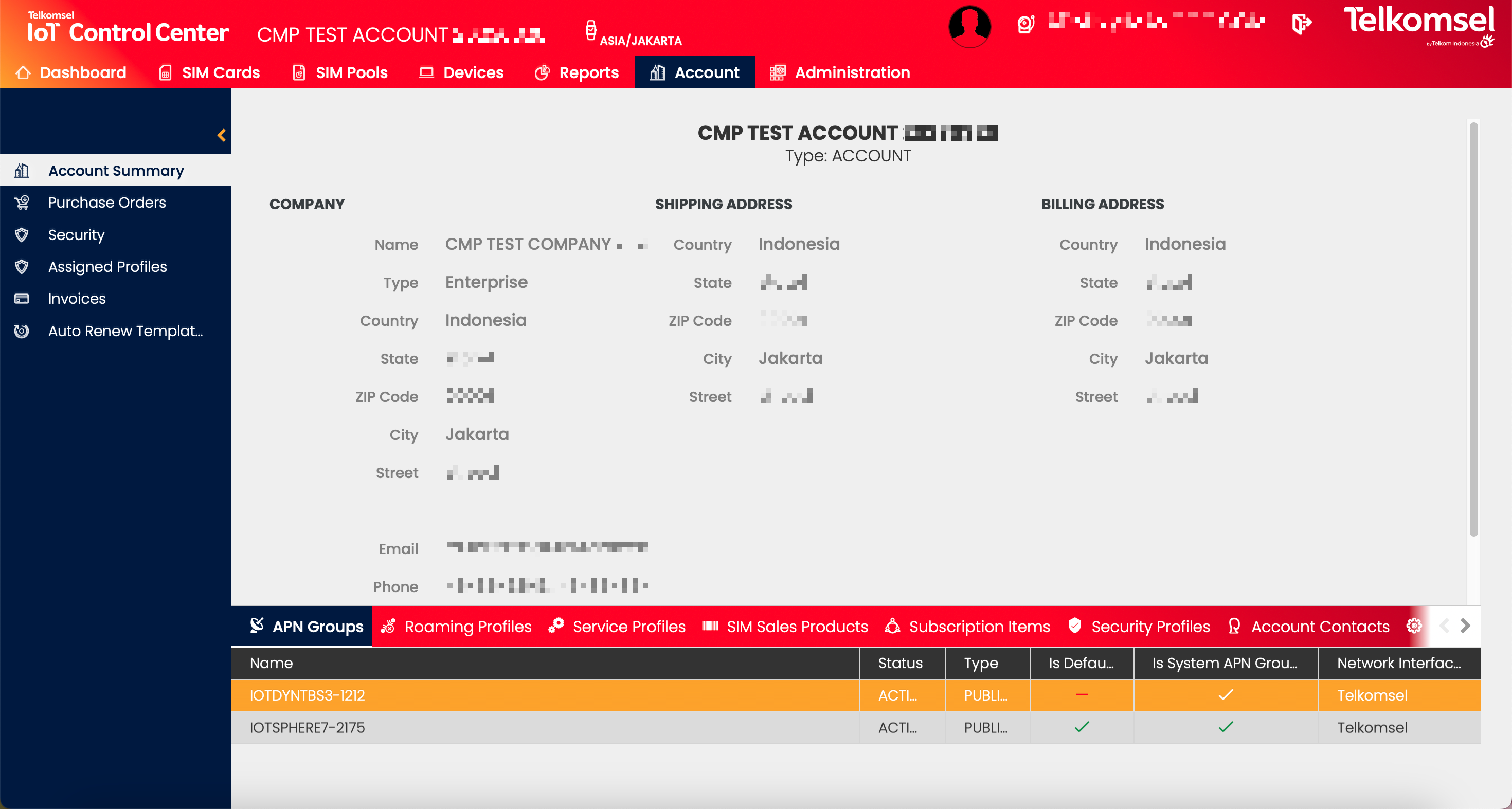
APN Groups
An Access Point Name (APN) provides a SIM with the information needed to make a connection between a mobile network and the public internet. CMP allows Service Providers to bundle one or more APNs into a group (APN Group), and assign the APN Group to one or more Accounts. APN Groups are "virtual" entities that exist only within the CMP.

Roaming Profiles
The concept of Roaming Profiles encompasses the permissions a SIM has to operate on networks other than its home subscriber network. A SIM cannot connect to a mobile network that is not authorized by its Roaming Profile.

Service Profiles
Service Profiles define the set of services that a SIM is authorized to use when it connects to a network. Using a Service Profile with the right level of services is an important step toward preventing an Account from incurring unnecessary charges.

SIM Sales Products
SIM Sales Products represent SIM Products with their defined size, technical details, and optional branding, plus the addition of a per-piece sales price.

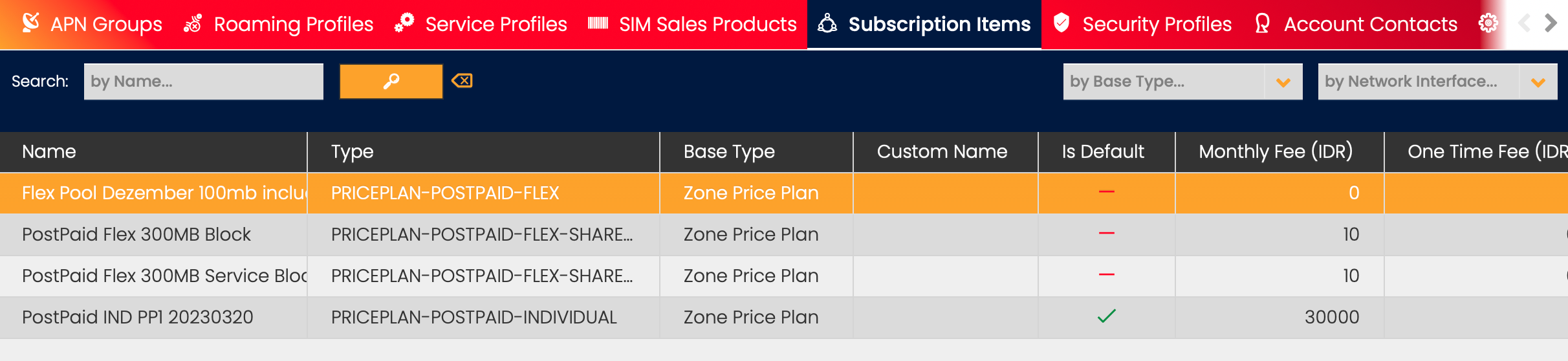
Subscription Items
Price Plans define the Network Usage prices and rates that are applied in Subscriber contracts with a Price Plan. A Price Plan also specifies the terms under which additional Products and Services (such as Data, Overage Charges, and Test Quotas) will be assigned.
CMP enables the creation and management of products that are offered to Account in addition to the connectivity fees specified in the Price Plans. These products are known as Add-Ons.
View Price Plan Details
In order to understand the various cost items and create a high-level estimate based on the current or expected usage of the current Billing Cycle, Enterprise Account Users can look into the details of the Price Plans that have been assigned to their Account. To view the Price Plan Details, click on the name of the Price Plan.
Note that the Show Price Plan Details option is only available for Zone Price Plans.
The Price Plan Details view provides Users with an overview of the Price Plan as well as in-depth details on the allowances and rates specified in the selected Price Plan. All information displayed in this section is read-only.
Note that depending on the Price Plan's configuration, the set of tabs displayed in the Price Plan Details may differ (e.g. the Tiering tab is only displayed in case Tiering has been configured in the selected Price Plan).
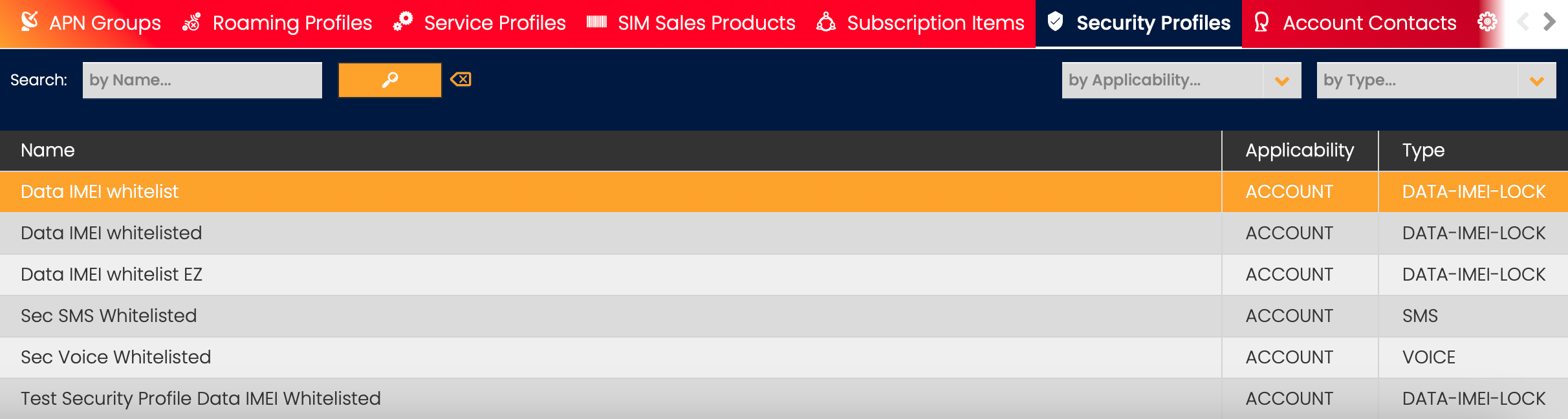
Security Profiles
The use of Security Profiles allows customers to prevent their SIMs from using data on unauthorized devices, sending/receiving SMS to/from unwanted MSISDNs, and making/receiving voice calls to/from unwanted MSISDNs.
Account Contacts
Account Contacts are Contacts that are created for a Customer Account by the Service Provider, for example, these could include Billing Contact.
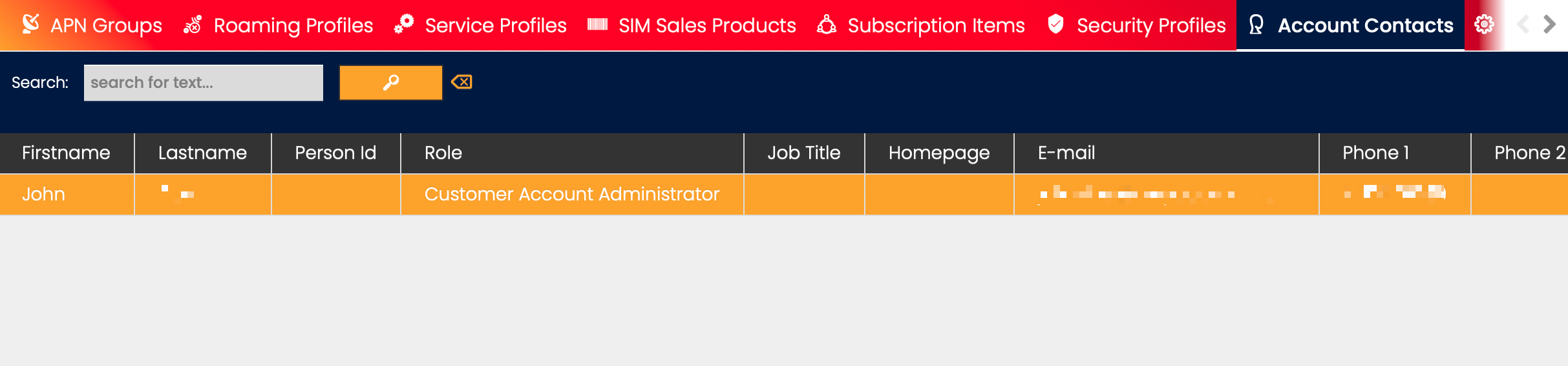
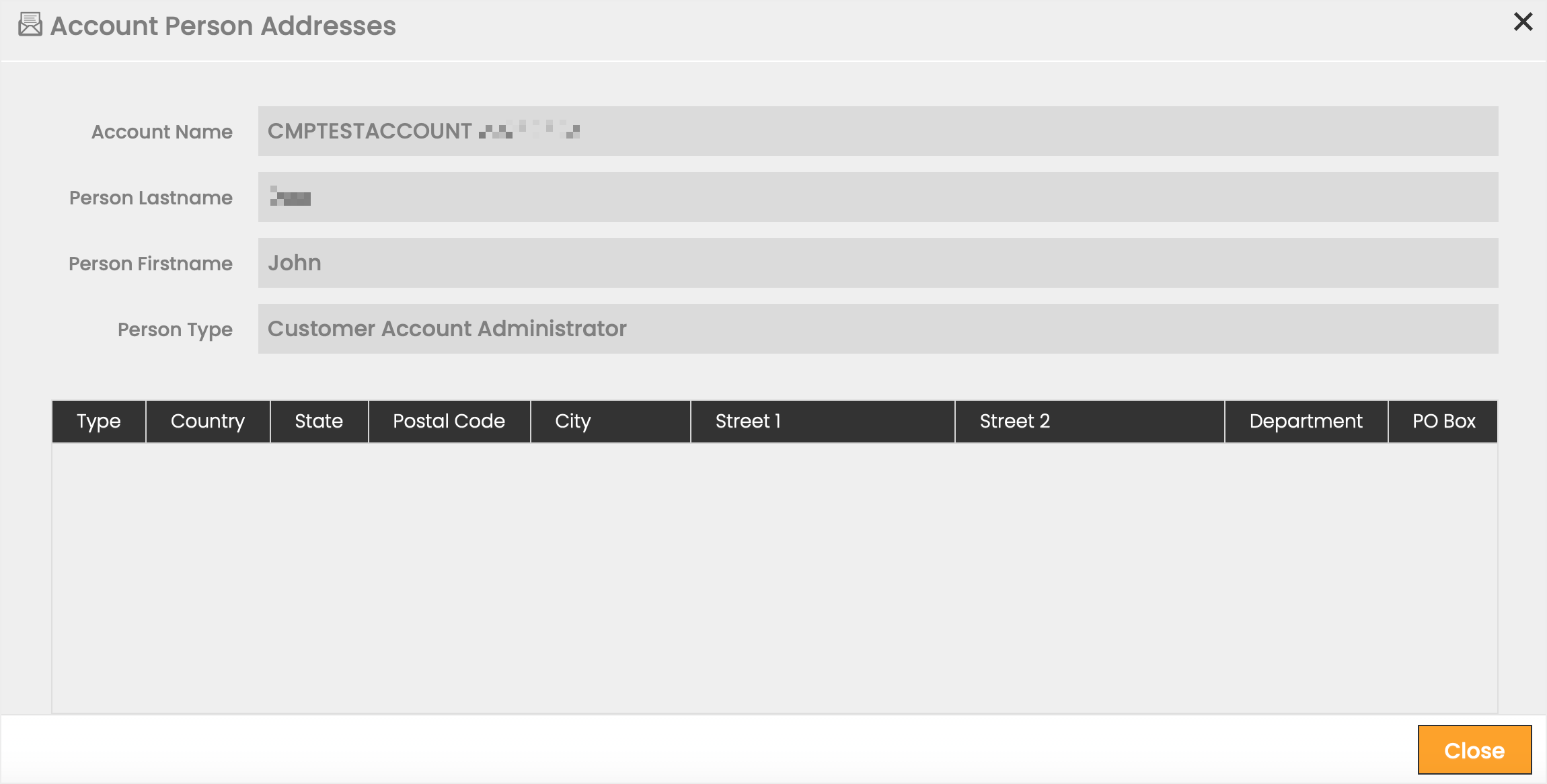
By selecting the envelope  icon in the Addresses column, Users can view the addresses specified for the currently selected Account Contact.
Account Settings
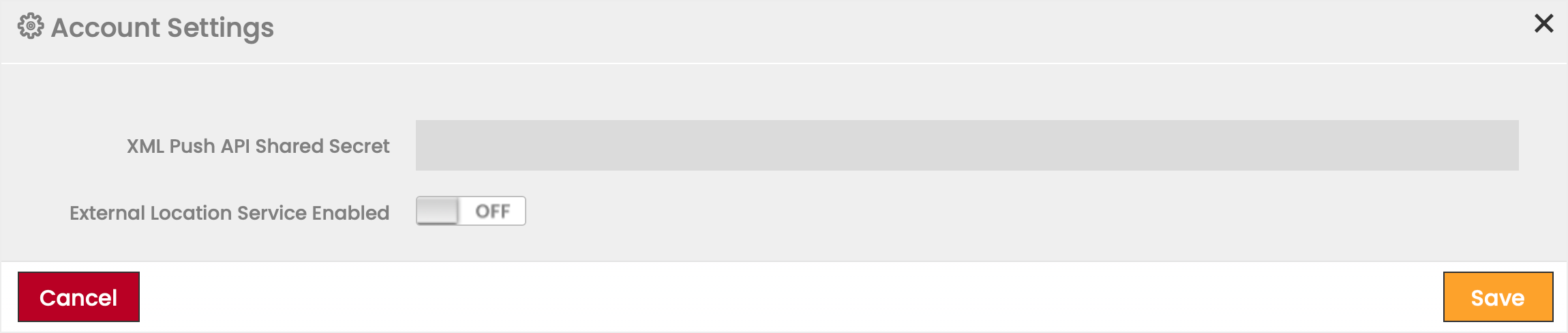
Account Settings allows Account Users to define or modify the XML Push API Shared Secret of the Account and whether External Location Service is enabled for the Account.
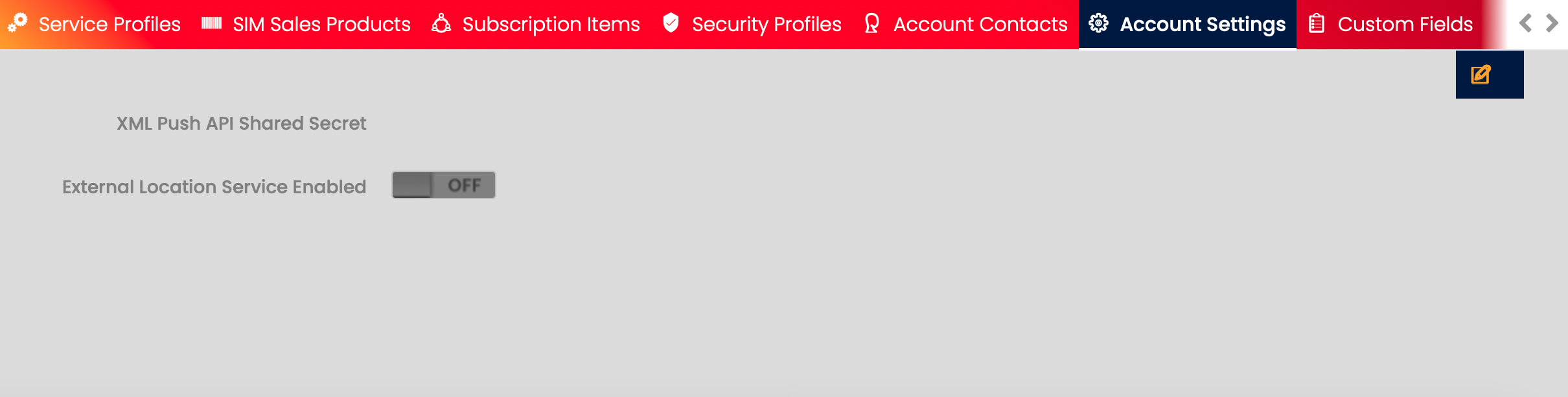
To define or modify the Account's XML Push API Shared Secret and whether External Location Service is enabled:
Note that this is only visible if the feature External Location Service feature is enabled.
- Click on the Edit
 icon.
icon. - Define or modify the XML Push API Shared Secret.
- Define whether External Location Service is enabled.
Note that External Location Service can only be enabled/disabled by Root-level Users. - Click Save to apply the changes.
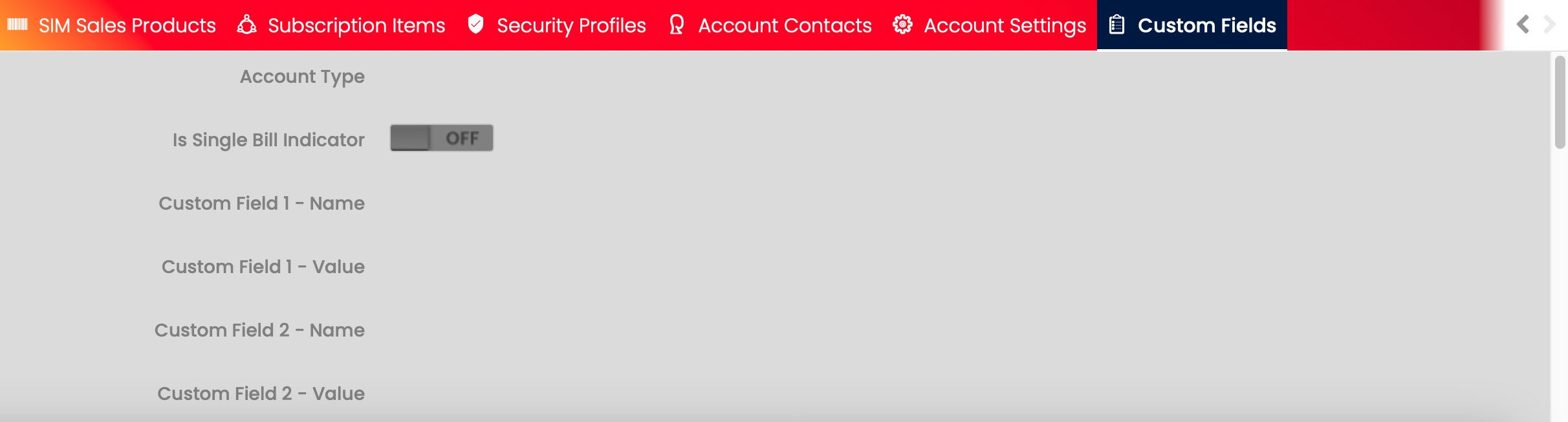
Custom Fields
The Custom Fields tab shows Custom Attribute values on the CSP Context for the Account. The values are available in read-only mode.